Category: IT

  • How to Use AI to Automate Your Employee Onboarding Process

    How to Use AI to Automate Your Employee Onboarding Process

    AI & Automation

    How to Use AI to Automate Your Employee Onboarding Process

    By Xorabyte Team 5 Min Read
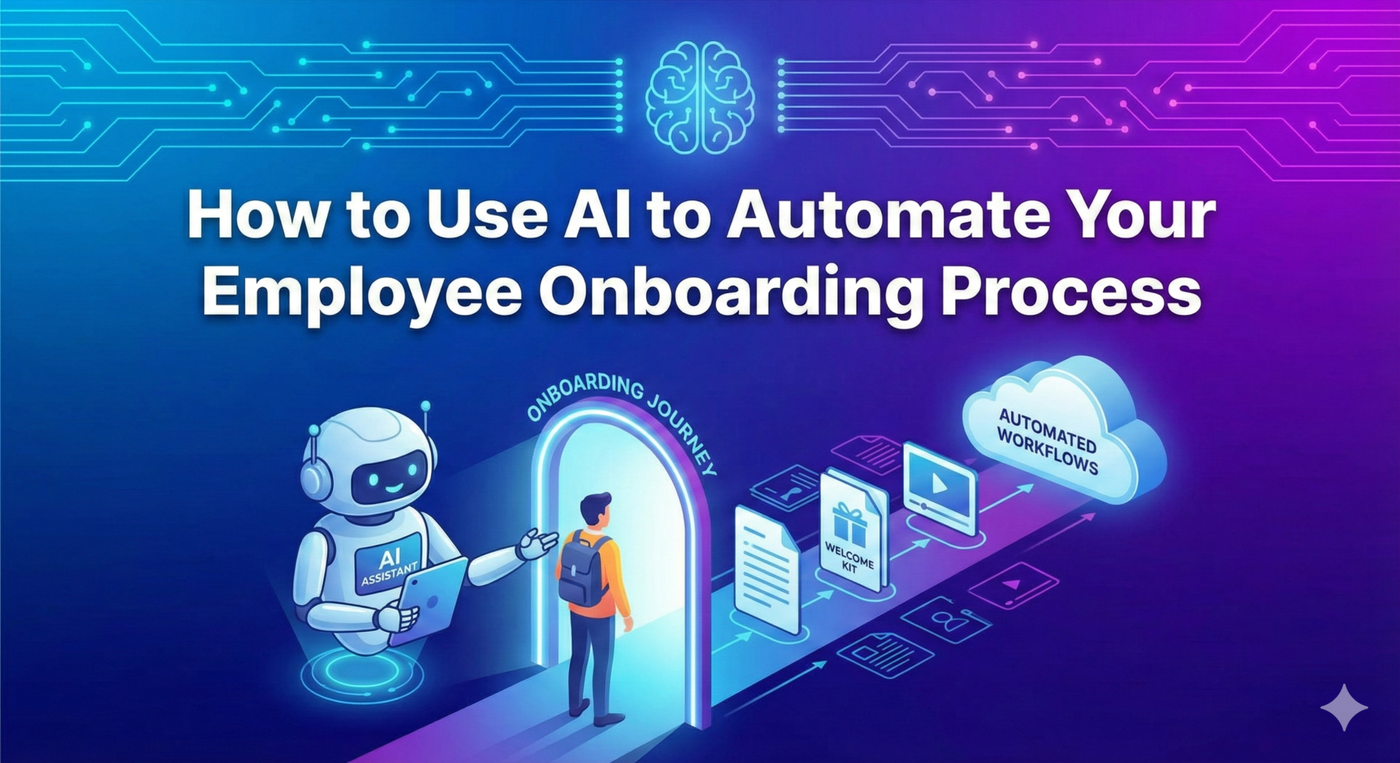
    HR Manager welcoming new employee with tablet

    You’ve finally found the perfect candidate. They signed the offer letter. You’re excited. But then reality sets in: the paperwork nightmare begins.

    For most Toronto SMBs, onboarding is a chaotic scramble. You have to email IT to set up a laptop, tell payroll to add them to the system, ask the office manager to find a desk, and remember to send the new hire their handbook.

    If you miss one step, your new employee spends their first day sitting in the lobby without a computer or an email address. It’s a bad first impression, and it’s a waste of money.

    But what if you could click one button and have all of that happen automatically? With AI and Microsoft 365, you can.


    The Old Way vs. The Automated Way

    The Old Way: You send 5 different emails to 5 different people. You hope they read them. You chase them up on Friday afternoon.

    The Automated Way: You fill out one simple form. A “workflow” runs in the background, creating accounts, sending emails, and assigning tasks instantly.

    Step 1: The “Magic” Form

    It starts with a simple Microsoft Form. Your HR manager enters the new hire’s name, start date, department, and manager.

    That’s it. They hit “Submit,” and the automation takes over.

    Step 2: Instant IT Setup (Zero Touch)

    Using Microsoft Power Automate, that form submission triggers a sequence in Azure AD (now Entra ID).

    • Email Creation: A new `@yourcompany.com` email is created automatically.
    • License Assignment: The system assigns a Microsoft 365 Business Premium license.
    • Group Membership: If they are in “Sales,” they are automatically added to the Sales Teams channel and given access to the Sales SharePoint drive.

    Step 3: The Welcome Experience

    The automation doesn’t stop at IT. It can also handle communication.

    You can set a rule to wait until 9:00 AM on their start date. At that exact moment, the system sends a personalized “Welcome” email to the new employee’s personal address.

    This email contains their new login credentials, a link to the employee handbook, and a “First Day Checklist.” No one in HR had to remember to hit send.

    Step 4: Task Assignment

    Finally, the system ensures your internal team is ready.

    • To the Office Manager: A task is created in Microsoft Planner: “Prepare desk for [New Hire].”
    • To the Manager: A Teams message is sent: “Reminder: [New Hire] starts on Monday. Have you scheduled their lunch?”

    Want to Build This Workflow?

    You likely already have the tools to do this (Microsoft 365). You just need someone to connect the dots. At Xorabyte, we build custom onboarding automations that save our clients 5-10 hours per new hire.

    Automate My Onboarding

  • 7 Microsoft 365 Hidden Features You’re Paying For But Not Using

    7 Microsoft 365 Hidden Features You’re Paying For But Not Using

    Productivity & Efficiency

    7 Microsoft 365 Hidden Features You’re Paying For But Not Using

    By Xorabyte Team 5 Min Read

    If your Toronto business is like most, you use Microsoft 365 every single day. You send emails in Outlook, write documents in Word, and crunch numbers in Excel. But here is the hard truth: you are likely only using about 10% of what you pay for.

    Microsoft 365 isn’t just a suite of office apps anymore; it’s a massive ecosystem of productivity tools designed to automate workflows, schedule appointments, and secure your data. The best part? You are already paying for them.

    Stop letting your subscription dollars go to waste. Here are 7 “hidden” features in your current license that can revolutionize how your team works.


    1. Microsoft Bookings: Kill the “Email Tag”

    How much time does your admin or sales team waste trying to schedule meetings? “Are you free Tuesday at 2? No? How about Wednesday at 10?”

    Microsoft Bookings solves this instantly. It’s a scheduling tool (similar to Calendly) that integrates directly with your Outlook calendar. You set your availability, create a booking link, and send it to clients. They pick a time that works for them, and it automatically syncs to both calendars.

    • Best for: Sales teams, consultants, and service dispatchers.
    • Where to find it: Look for the “Bookings” icon in your M365 app launcher.

    2. Power Automate: Your Robot Assistant

    Do you have repetitive tasks that eat up your day? Maybe you save every email attachment to a specific folder, or you copy data from an email into a spreadsheet.

    Power Automate allows you to build “flows” that do this automatically. You can create a rule that says: “When an email arrives from ‘Client X’ with an attachment, save that attachment to the ‘Client X’ folder in SharePoint and send me a Teams notification.”

    • Best for: Reducing manual data entry and administrative overhead.

    3. Microsoft Lists: Excel on Steroids

    Many SMBs use Excel to track things like inventory, asset lists, or employee onboarding steps. But Excel files are clunky, hard to share on mobile, and prone to version errors.

    Microsoft Lists is a dedicated app for tracking information. It’s mobile-friendly, visual, and allows multiple people to edit at once without breaking formulas. You can even attach photos directly to list items from your phone.

    4. Microsoft Planner: Project Management Lite

    You might not need a heavy tool like Asana or Monday.com. If you just need a simple way to track “Who is doing what?” for a project, Planner is perfect.

    It uses a “Kanban” board style (like Trello) where you create tasks cards and move them from “To Do” to “In Progress” to “Done.” Since it’s integrated with 365, you get email notifications when a task is assigned to you.

    5. Microsoft Forms: Easy Data Collection

    Need to send a customer satisfaction survey? Need to collect lunch orders for the office? Or maybe a pre-intake form for new clients?

    Microsoft Forms lets you build professional surveys and questionnaires in minutes. The results are automatically piped into an Excel spreadsheet for you to analyze. It’s secure, professional, and included in your license.

    6. Teams Approvals: Standardize Your Sign-Offs

    Stop chasing managers down hallways for signatures on expense reports or quote approvals.

    Approvals is an app inside Microsoft Teams. You can send a request (e.g., “Approve Purchase Order #1234”), and the manager gets a notification on their phone. They click “Approve” or “Reject,” and there is a permanent digital paper trail of the decision.

    7. Microsoft Secure Score: Your Security Report Card

    This one isn’t for productivity—it’s for protection. Secure Score analyzes your M365 environment and gives you a score based on how secure you are.

    It will tell you exactly what to fix: “Turn on MFA for 3 admins,” or “Block legacy authentication.” It gamifies your cybersecurity and gives you a clear roadmap to protecting your business data.


    Are You Getting Your Money’s Worth?

    Most Toronto businesses utilize less than 20% of the Microsoft 365 power they pay for. At Xorabyte, we don’t just fix broken computers—we help you configure these tools to drive efficiency and growth.

    Book a Free M365 Optimization Audit