How to Use AI to Automate Your Employee Onboarding Process
You’ve finally found the perfect candidate. They signed the offer letter. You’re excited. But then reality sets in: the paperwork nightmare begins.
For most Toronto SMBs, onboarding is a chaotic scramble. You have to email IT to set up a laptop, tell payroll to add them to the system, ask the office manager to find a desk, and remember to send the new hire their handbook.
If you miss one step, your new employee spends their first day sitting in the lobby without a computer or an email address. It’s a bad first impression, and it’s a waste of money.
But what if you could click one button and have all of that happen automatically? With AI and Microsoft 365, you can.
The Old Way vs. The Automated Way
The Old Way: You send 5 different emails to 5 different people. You hope they read them. You chase them up on Friday afternoon.
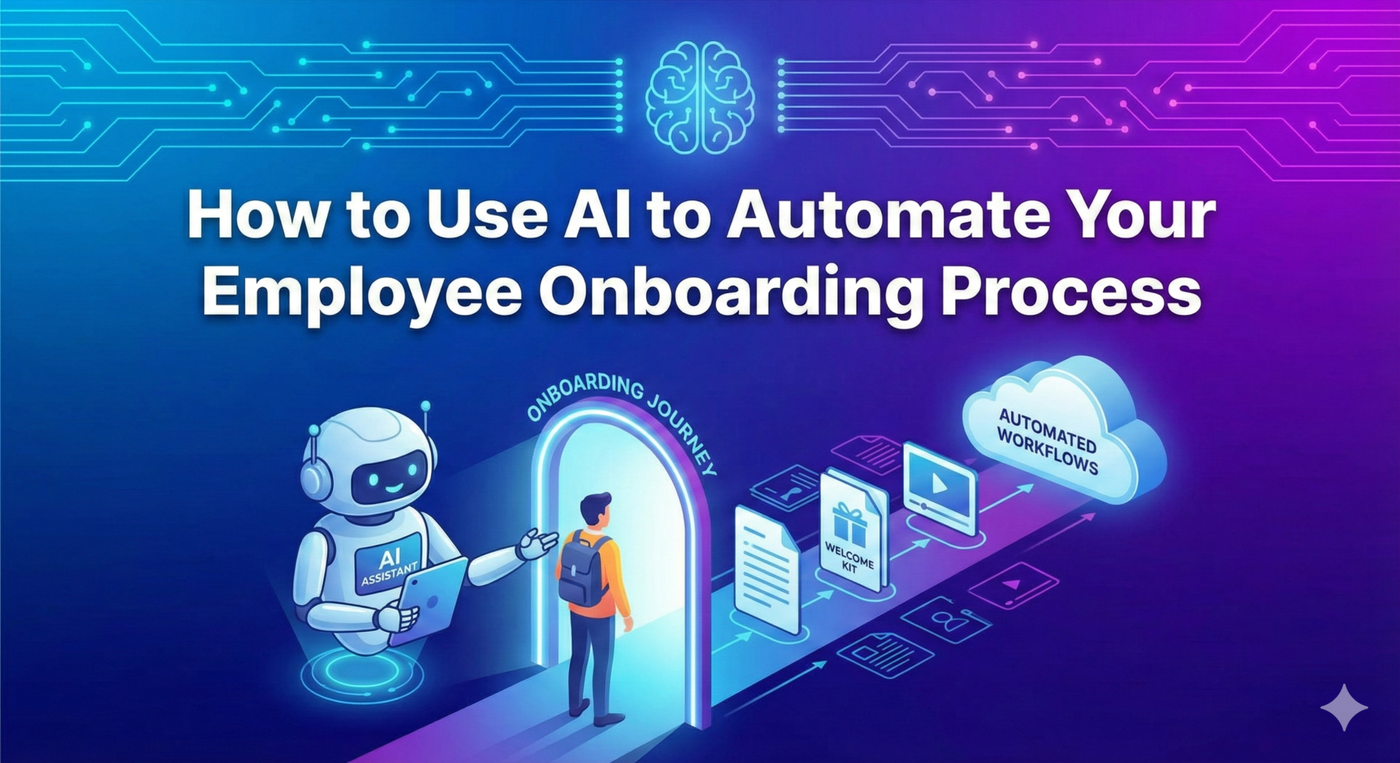
The Automated Way: You fill out one simple form. A “workflow” runs in the background, creating accounts, sending emails, and assigning tasks instantly.
Step 1: The “Magic” Form
It starts with a simple Microsoft Form. Your HR manager enters the new hire’s name, start date, department, and manager.
That’s it. They hit “Submit,” and the automation takes over.
Step 2: Instant IT Setup (Zero Touch)
Using Microsoft Power Automate, that form submission triggers a sequence in Azure AD (now Entra ID).
- Email Creation: A new `@yourcompany.com` email is created automatically.
- License Assignment: The system assigns a Microsoft 365 Business Premium license.
- Group Membership: If they are in “Sales,” they are automatically added to the Sales Teams channel and given access to the Sales SharePoint drive.
Step 3: The Welcome Experience
The automation doesn’t stop at IT. It can also handle communication.
You can set a rule to wait until 9:00 AM on their start date. At that exact moment, the system sends a personalized “Welcome” email to the new employee’s personal address.
This email contains their new login credentials, a link to the employee handbook, and a “First Day Checklist.” No one in HR had to remember to hit send.
Step 4: Task Assignment
Finally, the system ensures your internal team is ready.
- To the Office Manager: A task is created in Microsoft Planner: “Prepare desk for [New Hire].”
- To the Manager: A Teams message is sent: “Reminder: [New Hire] starts on Monday. Have you scheduled their lunch?”
Want to Build This Workflow?
You likely already have the tools to do this (Microsoft 365). You just need someone to connect the dots. At Xorabyte, we build custom onboarding automations that save our clients 5-10 hours per new hire.
Automate My Onboarding